Web Search on Amazon Bedrock now supports domain filtering and user location controls
Web Search on Amazon Bedrock now supports two new controls that give you more precision over

So, you’ve planned your database modernization journey. You’ve set up Google Cloud’s Database Migration Service (DMS), configured replication, and successfully synchronized your application databases from your on-premises or cloud systems to a fully managed Cloud SQL for SQL Server instance.
The replication is complete, the data is up to date, and you’re ready for cutover. But when your application attempts to connect to the newly migrated database, you’re hit with a frustrating roadblock:
Msg 18456, Level 14, State 1, Line 1: Login failed for user 'app_user.
The culprit is simple: your SQL Server logins didn’t migrate with your database. In this post, we’ll look at why this gap exists, why it actually protects your organization’s security posture, and how easy it is to bridge using standard, time-tested SQL Server tools.
Database Migration Service (DMS) is highly efficient at replicating database-level schemas and transactional data. However, it purposefully doesn’t migrate instance-level objects, such as the system master database or server logins and permissions.
While this might feel like a missing feature, it is actually a deliberate design choice built around three core pillars:
Security Isolation and Privilege Boundaries: The source environment and the destination Cloud SQL environment operate under different security paradigms. Replicating the master system database directly could lead to unauthorized privilege escalation. For example, an on-premises login with sysadmin privileges shouldn’t have unrestricted sysadmin access to a fully managed Google Cloud database. When the cloud provider manages physical backups, patching, and security, it needs to limit underlying operating system access to ensure correct operation.
Compliance and Audit Governance: Automated migration of encrypted password hashes and server-level security credentials without explicit administrator oversight frequently violates enterprise compliance frameworks such as PCI-DSS or SOC 2. By keeping security object migration as a deliberate, administrator-driven step, organizations can guarantee that only approved identities are provisioned in the cloud landing zone.
The Need for Identity Modernization: Migrating to the cloud is the perfect opportunity to update and prune stale credentials. Frequently, on-premises instances carry legacy SQL logins that are no longer used. Replicating them blindly to a cloud-managed service is a security anti-pattern. Furthermore, moving to Cloud SQL is often the catalyst for shifting away from legacy SQL authentication toward modern, cloud-native identity solutions like Customer-Managed Active Directory (CMAD).
To migrate logins successfully, let’s briefly revisit how SQL Server manages security. SQL Server separates identity into two distinct layers:
Logins (server-level): Stored in the master database. These authenticate a client connection to the SQL Server instance.
Users (database-level): Stored inside individual user databases. These authorize what actions a connection can perform within that specific database.
The bridge between a server login and a database user is a unique Security Identifier (SID).
When you backup and restore a database (or use DMS to replicate it), the database-level users (and their corresponding SIDs) are migrated inside the database files. However, if the corresponding server-level login does not exist in the destination master database—or exists but has a different SID—the mapping breaks. This results in “orphaned users” who have database access permissions but no way to authenticate at the server level.
Figure 1: How migrating databases without corresponding logins or with mismatched security identifiers (SIDs) results in orphaned users on the destination instance.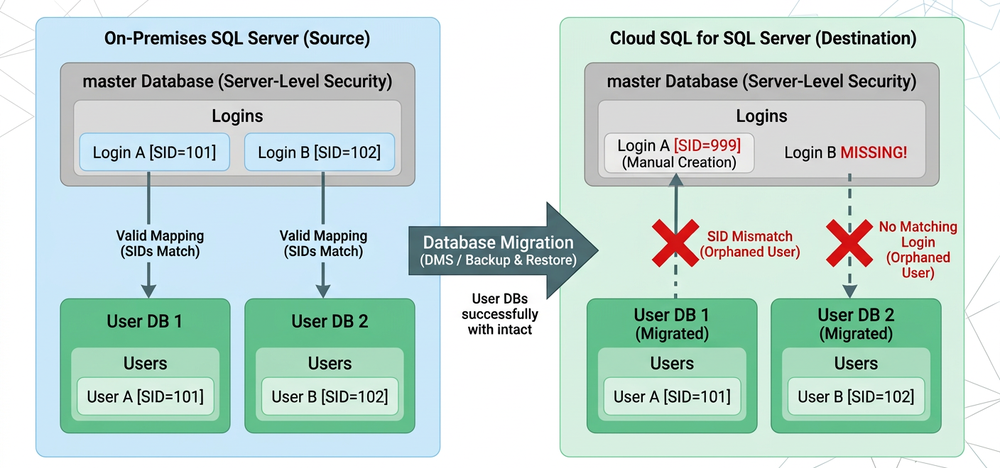
Instead of manually recreating every login and guessing password hashes, we can rely on a classic Microsoft-provided script: sp_help_revlogin.
This script generates a T-SQL query containing the CREATE LOGIN statement for every SQL Server authentication login on your source instance, complete with its original, encrypted password hash and its exact Security Identifier (SID).
Step 1: Create the helper procedures on your source instance
Connect to your source SQL Server instance using SQL Server Management Studio (SSMS). Copy and execute the official Microsoft script to create the two required stored procedures in your source master database: sp_hexadecimal and sp_help_revlogin.
Step 2: Generate the migration script
Once the procedures are created, run the following statement in your SSMS query window. Make sure to toggle your output settings to Results to Text (Ctrl + T) to copy the output cleanly:
The output will contain auto-generated T-SQL statements that look similar to this:
By scripting out the login with the HASHED password option and the original SID, SQL Server allows us to safely recreate the login with its original password and secure link intact.
Step 3: Apply the script to Cloud SQL
Copy the generated script, connect to your destination Cloud SQL for SQL Server instance, and execute the query. Your logins are instantly created in the cloud with their correct passwords.
By running the script generated by sp_help_revlogin, we replicate the logins onto the destination Cloud SQL instance with their exact security identifiers (SIDs) and password hashes intact. As shown below, this ensures that the database-level users automatically map to their server-level logins upon database migration, avoiding “orphaned users” entirely.
Figure 2: The unified migration process using the sp_help_revlogin script to preserve password hashes and original SIDs, resolving user mapping on Cloud SQL for SQL Server.
Note:
sp_help_revlogin is a stored procedure that was created and is maintained by Microsoft. Make sure to download the latest version and read the documentation.
If you had created a login on the target Cloud SQL instance manually before running sp_help_revlogin, the SIDs might not match, causing the user to become “orphaned.”
If you find an orphaned user (say, app_user), you can easily remap it to the newly created server login with a single command:
With that command, the database user and the server login are immediately reunited via their SIDs, and application connectivity is fully restored.
While migrating SQL logins using sp_help_revlogin is the easiest path for a lift-and-shift migration, consider utilizing your cloud migration to modernize your authentication. Cloud SQL for SQL Server supports robust integrations with Customer-Managed Active Directory (CMAD). Integrating your destination instance with Active Directory allows you to deprecate legacy SQL logins in favor of centralized, enterprise-grade Kerberos authentication.
Database migration is more than just shifting rows of data—it’s about ensuring your applications remain secure, compliant, and operational from day one. While Google Cloud’s DMS handles the heavy lifting of data replication, migrating your logins is a straightforward, three-step process that guarantees a seamless cutover.
To learn more about optimizing your migration strategy, check out the Cloud SQL for SQL Server Migration Guide and explore how Database Migration Service can streamline your move to Google Cloud.