Gemini 4 Argon available on Google Cloud, built to help solve your business’ hardest problems
Last week we announced that Gemini Enterprise has evolved to make it even simpler to

The reality for most organizations is that data lives everywhere. As engineering teams expand and adopt specialized platforms for their workloads, enterprise data naturally disperses across multiple clouds and operational systems. When analytical and AI initiatives require context from across the entire organization,these teams traditionally face a difficult trade-off: build complex extraction pipelines to copy data into a central repository or accept fragmented reporting.
Traditional architectures address this fragmentation with scheduled extraction pipelines that copy remote datasets into a central staging warehouse. This approach creates synchronization lag, adds recurring storage costs, and triggers variable network egress fees. When schemas change upstream, pipelines break, and teams spend hours reconciling metrics across out-of-sync dashboards.
BigQuery and Google Cloud’s borderless Lakehouse offer a streamlined way to solve this challenge with a foundation based on the open Apache Iceberg REST catalog specification. Rather than moving data to the compute engine, you can bring Google Cloud compute and generative AI directly to your data, querying it in place across Databricks, Snowflake, and AWS Glue.
In this post, we walk through how to configure Databricks Unity Catalog for federation into BigQuery (AWS Glue and Snowflake set up in appendix), run a single query joining data across all three external catalogs, and use conversational analytics in BigQuery to explore the consolidated data with natural language.
Figure 1: BigQuery federates metadata across external Apache Iceberg REST catalogs through Lakehouse, enabling in-place conversational analytics without data migration.
This solution uses Lakehouse runtime catalog to synchronize metadata from other cloud providers, allowing you to query data with BigQuery or external open source engines through the Apache Iceberg REST catalog endpoint, all without migrating the data. Because Databricks Unity Catalog, Snowflake Horizon Catalog, and AWS Glue Data Catalog support the open Apache Iceberg REST catalog specification, you can apply a consistent connection pattern across all three platforms.
When you run a federated query, Lakehouse runtime catalog separates metadata synchronization from storage access:
Metadata synchronization: Lakehouse runtime catalog periodically syncs schemas, snapshot pointers, and table definitions from the remote catalog based on a refresh schedule you define.
Direct storage access: During query runtime, a compatible engine reads Parquet data files directly from remote object storage, such as Amazon S3, using temporary credentials issued by the remote platform.
All query processing runs within Google cloud compute such as BigQuery or Managed Service for Apache Spark. Remote Databricks clusters, Snowflake virtual warehouses, and AWS compute instances are not invoked during execution.
Authentication follows an explicit three-step deployment pattern: create the federated catalog in Google Cloud, inspect its configuration to retrieve its automatically generated service account, and grant access permissions within the remote platform.
You can use AI to generate sample data. The schema details for tables are provided below.
We begin in Databricks by preparing the catalog and table. In Unity Catalog, federated access requires that your target schema be associated with an external location registered in Databricks:
You can use AI to generate sample data. The schema details for tables are provided in each section.
Before external engines can read this table, a Databricks metastore administrator must enable External data access on the metastore details tab.
Go to Databricks Admin account and under User Management, create a Databricks Service Principal and make a note of its UUID "6ea7b861-c5a5-xxxx-xxxx-xxxxxxxxxxxx"
Next, create the federated catalog inside Google Cloud using the gcloud command-line tool. You will need your Databricks workspace URL and the application ID of your Databricks service principal:
Once created, describe the catalog to view its assigned service account:
Return to Databricks to assign permissions to your service principal:
You must grant the EXTERNAL USE SCHEMA privilege to the Databricks Service Principal on the target schemas or catalog to enable credential vending for external data access.
Finally, to complete the connection, configure the federation policy on the Databricks service principal with the following details –
Issuer URL* – https://accounts.google.com
Subject* – numeric subject ID returned by the catalog describe command eg 1124251400450xxxxxxxx
Audiences – https://accounts.cloud.databricks.com
Federated Iceberg tables are addressed in BigQuery using four-part paths: project.catalog.namespace.table.
In our environment, sales transactions reside natively in BigQuery:
We can now run a single SQL query joining our native sales transactions with customer records in Snowflake, product lines in Databricks, and store locations in AWS Glue:
BigQuery processes the joins in place. Notice that Snowflake identifiers appear in uppercase (CORE.DIM_CUSTOMERS), while Databricks and AWS Glue maintain lowercase table paths.
Figure 2 – Query results combining data across Snowflake, Databricks, and AWS Glue.
Because federated Iceberg tables behave like native tables within BigQuery, downstream analytical features inherit access directly. You can point conversational analytics in BigQuery at these federated schemas to let team members explore cross-cloud data using natural language prompts.
To give conversational analytics full operational context, we save our federated join as a logical view:
When you ask conversational analytics in BigQuery:
“Who are our top customers by total sales revenue, what products did they buy, and which stores did they shop at?”
Conversational analytics evaluates the schema across all three remote catalogs, generates the SQL statement, executes the query, and presents the response.
Figure 3: Conversational analytics in BigQuery translates plain-language prompts into federated queries across Snowflake, Databricks, and AWS Glue.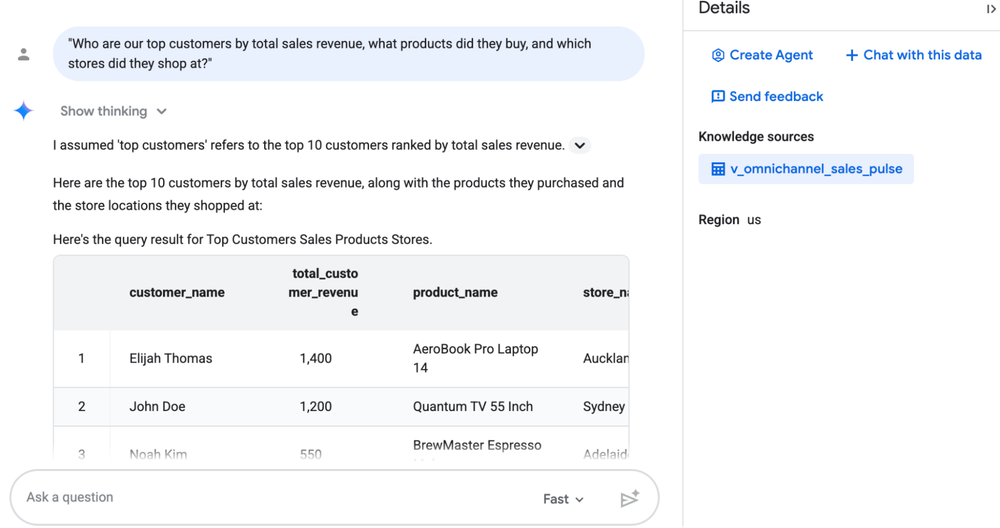
Before deploying federated catalogs in production, consider these operational behaviors:
Background refresh timing: The --refresh-interval flag controls metadata synchronization. The minimum interval is 300 seconds. For larger catalogs containing hundreds of tables, metadata retrieval can take longer. If a sync cycle overruns, BigQuery skips the next scheduled run to avoid task queuing.
Automatic query caching: BigQuery caches retrieved cross-cloud data blocks in the region where your federated catalog resides (e.g. us-central1). This helps reduce network transfer on repeated queries. Because cached blocks reside within Google Cloud storage in that region, confirm that this aligns with your organization’s data residency policies.
Encryption controls: Cross-cloud cache blocks use Google-managed encryption keys. If your organization enforces the constraints/gcp.restrictNonCmekServices policy constraint, BigQuery bypasses the cache and reads directly from remote storage for every query.
Monitoring access metrics: You can evaluate cache utilization in your query execution plans. Check the objectStorageStats section in BigQuery job statistics to compare cacheBytesRead against objectStorageBytesRead.
In summary, Google Cloud’s borderless Lakehouse helps you activate your data regardless of where it lives without costly migrations or building additional data pipelines. Get started today by reviewing the borderless Lakehouse architecture documentation to learn more about supported regions and credential configurations. You can work through the borderless Lakehouse codelab to practice federating external catalogs step-by-step. Finally, connect with your Google Cloud account team or customer engineer to evaluate borderless lakehouse patterns for your specific data platforms or industries.
Setting up Snowflake and AWS Glue cross cloud data access
We begin in Snowflake by creating the database, schema, and Iceberg table. In Snowflake Horizon, managed Iceberg tables expose an open Apache Iceberg REST catalog interface automatically:
Before external engines can read this catalog, configure a dedicated reader role and grant traversal permissions across the database, schema, and table.
SQL
Next, create the federated catalog inside Google Cloud using the gcloud command-line tool. You will need your Snowflake account identifier, the reader role, and the root Iceberg database name:
bash
In the Apache Iceberg REST specification, --snowflake-warehouse references the catalog root database name (SF_RETAIL_DB), not a virtual compute warehouse.
Once created, describe the catalog to view its assigned numeric service account ID:
bash
Return to Snowflake to bind Google Cloud’s numeric identity to a passwordless service user via Workload Identity Federation (WIF):
SQL
This establishes passwordless authentication over OpenID Connect, allowing BigQuery to discover table metadata and vend temporary query-time credentials directly from Snowflake Horizon.
We begin in AWS by preparing the IAM identity, establishing access permissions across AWS Glue and Amazon S3, and registering the Iceberg table.
First, create a placeholder trust policy named trust_policy.json. This allows you to provision the AWS IAM role before Google Cloud assigns the unique catalog service agent:
Create the IAM role using the AWS CLI. Setting a 12-hour session duration (43200 seconds) prevents credential expiration during long-running analytical queries:
Next, define the permissions policy in a file named permissions_policy.json. This policy grants BigQuery permission to read the AWS Glue catalog metadata and access the underlying Parquet data files in Amazon S3:
Attach this permissions policy to your newly created role:
Important (AWS Lake Formation): If your AWS environment uses AWS Lake Formation, verify that the IAMAllowedPrincipals group has access to the target database and table (or grant explicit Lake Formation permissions to lakehouse_glue_federation_role if the bucket is registered with AWS Lake Formation). Without this, Lake Formation security settings will block the IAM role from accessing catalog metadata.
With permissions in place, create the database and Iceberg table in AWS Glue using Amazon Athena:
Next, register the federated catalog inside Google Cloud using the gcloud command-line tool. You will need your 12-digit AWS Account ID, AWS Region, and the role ARN created above:
To prevent premature background refresh failures while the AWS trust policy propagates, initialize the catalog without setting a refresh schedule.
Next, extract the unique numeric subject ID assigned to the catalog by Google Cloud:
Return to the AWS CLI and update your IAM role’s trust policy, replacing the placeholder with the verified Google Cloud identity:
bash
Verify that the namespaces are discovered and synchronized:
bash