Enterprise AI needs to go beyond simple chat interfaces. To provide real value, AI agents must access your data warehouses to generate actionable insights, all while maintaining strict security and data governance.
This guide explores how to build a secure bridge between Google Cloud’s Gemini Enterprise and Snowflake. By using the Model Context Protocol (MCP) and the Google Agent Development Kit (ADK), you can empower your agent to act as an assistant that understands natural language, generates precise SQL via Snowflake Cortex and executes queries with user-level permissions.
Choosing the right integration pattern
Direct Connection vs. custom orchestration
The Google ADK architecture demonstrated in this post represents the advanced / custom orchestration pattern. It is designed for developers building complex, multi-agent systems on Google Cloud, such as workflows that combine Snowflake insights with external enterprise tools, custom reasoning loops, or cross-platform state management in Gemini Agent Engine.
For standard enterprise basic use cases where you want to connect Gemini Enterprise directly to Snowflake use the joint solutions mentioned in this link.
The architectural approach
This architecture allows a business user to ask questions like, “What were our top 5 selling items in Texas last quarter?”
Rather than exposing raw SQL execution to the client, the agent delegates both query generation and execution to a governed Snowflake Cortex Agent exposed through the Snowflake MCP server:
- Governed translation: The ADK agent passes the user’s natural language question to the Snowflake MCP server, which invokes the Cortex Agent (CORTEX_AGENT_RUN) backed by Cortex Analyst semantic view.
- Direct execution within the governed boundary: The Cortex Agent translates the question into SQL and executes it directly inside Snowflake using the authenticated user’s OAuth session and role privileges, returning the structured results to the ADK agent.
This approach provides deterministic text-to-SQL translation mapped to your corporate semantic definitions, keeps query execution inside Snowflake’s governed boundary, and reduces the risk of schema hallucinations or unvalidated SQL execution.
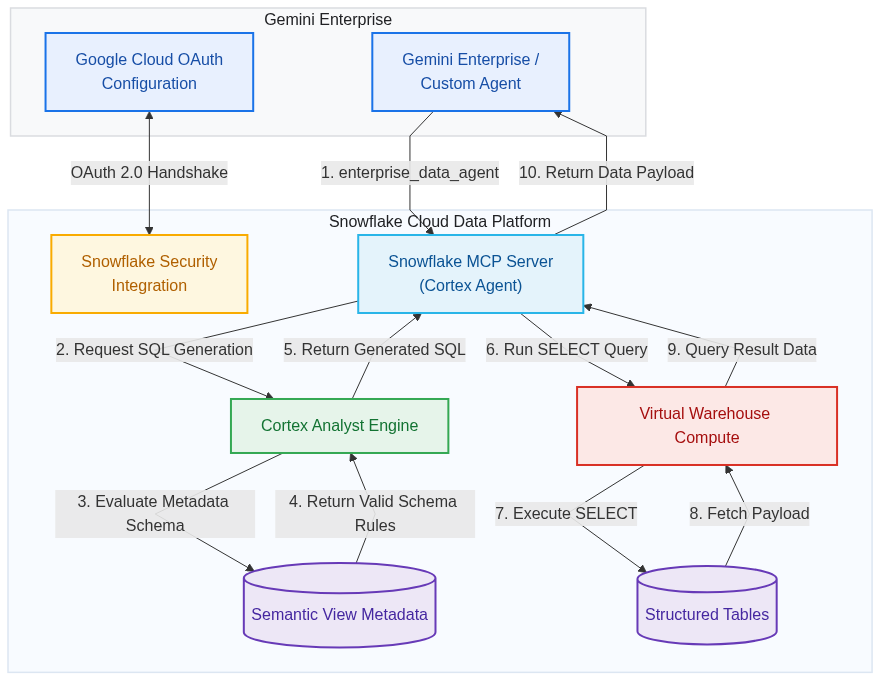
System architecture flow
The diagram below illustrates the trust boundaries and the numbered flow of execution between the Gemini Enterprise app and Snowflake ecosystems.
Detailed execution sequence
To highlight how the agent delegates natural language query translation and governed execution to the Snowflake Cortex Agent over MCP, see the sequence diagram below:
Step 1: Setting up the Snowflake security integration
A major risk in enterprise AI is granting the model broad access via a generic service account, which could allow users to bypass security restrictions. We solve this by using OAuth 2.0 to perform user impersonation.
First, establish a confidential OAuth client in Snowflake to protect the client secret. The snippet below configures the security integration inside Snowflake:
- code_block
- <ListValue: [StructValue([('code', "USE ROLE ACCOUNTADMIN; rnCREATE OR REPLACE SECURITY INTEGRATION rnTYPE = OAUTH rnENABLED = TRUE rnOAUTH_CLIENT = CUSTOM rnOAUTH_CLIENT_TYPE = ‘CONFIDENTIAL’ rn– Google Cloud’s official handshake receiver address: rnOAUTH_REDIRECT_URI = ‘https://vertexaisearch.cloud.google.com/oauth-redirect’ rnOAUTH_ISSUE_REFRESH_TOKENS = TRUE rn– Let the connection stay alive for 90 days (max Snowflake allowed limit) rnOAUTH_REFRESH_TOKEN_VALIDITY = 7776000;”), (‘language’, ”), (‘caption’, )])]>
To retrieve the generated client credentials needed for the Google Cloud configuration, run the following command in Snowflake:
- code_block
- <ListValue: [StructValue([('code', "– Retrieve OAuth Client ID and Client SecretrnSELECT SYSTEM$SHOW_OAUTH_CLIENT_SECRETS('’);”), (‘language’, ”), (‘caption’, )])]>
Step 2: Data governance and access control
Apply the principle of least privilege by creating a dedicated role for your agent inside Snowflake.
- code_block
- <ListValue: [StructValue([('code', 'USE ROLE SECURITYADMIN;rn– 1. Create a dedicated rolernCREATE ROLE IF NOT EXISTS ;rnGRANT ROLE TO USER ; rnUSE ROLE SYSADMIN;rn– 2. Grant structural accessrnGRANT USAGE ON DATABASE TO ROLE ;rnGRANT USAGE ON SCHEMA . TO ROLE ;rn– 3. Grant compute accessrnGRANT USAGE ON WAREHOUSE TO ROLE ;rn– 4 .Grant access to the semantic layerrnGRANT SELECT, REFERENCES ON SEMANTIC VIEW .. TO ROLE ;rn– 5. Grant select privileges on underlying raw data tablesrnGRANT SELECT ON ALL TABLES IN SCHEMA . TO ROLE ;’), (‘language’, ”), (‘caption’, )])]>
IMPORTANT
- The user context must have SELECT privileges on the physical tables backing the semantic view. Granting access only to the semantic view will cause runtime errors during query execution.
- If granting direct access to base tables is not permitted by your security policy, place a Snowflake Secure View over the physical tables and build the Semantic View on top of it. Because Snowflake views execute with Owner’s Rights, the user’s GenAI role only needs SELECT privileges on the Secure View and Semantic View rather than the raw tables.
- Snowflake OAuth tokens capture and bind to the user’s DEFAULT_ROLE and DEFAULT_WAREHOUSE at the exact moment of authorization. If a user authorizes the connection before these defaults are configured, the session will be locked to the wrong role(role available at that time) and query execution will fail if the intended role will not have required privileges.
- Set defaults(as shown below) prior to authorizing in Gemini Enterprise.
- Authorize connection: Have the user perform the one-time OAuth authorization in Gemini Enterprise.
- (Optional) Revert defaults: Once authorized, the user can safely revert their default role and warehouse in Snowflake back to their standard operational preferences.
- code_block
- <ListValue: [StructValue([('code', "ALTER USER SET DEFAULT_ROLE = ”;rnALTER USER SET DEFAULT_WAREHOUSE = ”;”), (‘language’, ”), (‘caption’, )])]>
Step 3: Provisioning the Cortex Agent and MCP server inside Snowflake
Next, create a governed Cortex Agent in Snowflake using your semantic view, then provision an MCP server that exposes the agent via the CORTEX_AGENT_RUN tool type. This approach delegates both SQL generation and query execution to Snowflake while enforcing the caller’s OAuth identity and role permissions.
- code_block
- <ListValue: [StructValue([('code', 'USE DATABASE ;rnUSE SCHEMA ;rnUSE ROLE SYSADMIN;rnrn– 1. Create the Cortex Agent over your semantic viewrnCREATE OR REPLACE AGENT rn COMMENT = ‘Governed data assistant for business queries’rn PROFILE = ‘{“cortex_analyst”: {“semantic_models”: [“..”]}}’;rnrn– 2. Provision the MCP Server exposing the Cortex AgentrnCREATE OR REPLACE MCP SERVER rnFROM SPECIFICATION $$rntools:rn – name: “run_cortex_agent”rn type: “CORTEX_AGENT_RUN”rn identifier: “..”rn title: “Cortex Agent Assistant”rn description: “Converts natural language questions into SQL and executes them directly within Snowflake using the caller’s OAuth session permissions.”rn$$;’), (‘language’, ”), (‘caption’, )])]>
ISOLATION & GOVERNANCE NOTE: By using CORTEX_AGENT_RUN, query generation and execution remain fully contained within Snowflake’s governed security boundary. Avoid exposing raw execution tools like SYSTEM_EXECUTE_SQL to external clients, as doing so introduces unnecessary security surface area and bypasses centralized Cortex Agent governance.
Step 4: Locating and constructing the MCP server URL
The ADK code requires the endpoint URL of your Snowflake-managed MCP server. Now that the server is provisioned, you must first grant access to the server, and then you can retrieve its exact endpoint URL using the following query in a Snowflake worksheet:
- code_block
- <ListValue: [StructValue([('code', '– 1. Grant access to the Cortex Agent and the MCP serverrnUSE ROLE SECURITYADMIN;rnGRANT USAGE ON AGENT .. TO ROLE ;rnGRANT USAGE ON MCP SERVER .. TO ROLE ;rn– 2. View the MCP URLrnDESCRIBE MCP SERVER ..;rn– Or:rnDESC MCP SERVER ..;’), (‘language’, ”), (‘caption’, )])]>
In the command output, inspect the metadata properties to locate the endpoint link. The URL is structured as follows:
- code_block
- <ListValue: [StructValue([('code', 'https://-.snowflakecomputing.com/api/v2/databases//schemas//mcp-servers/’), (‘language’, ”), (‘caption’, )])]>
Step 5: Connecting via Google ADK
With the MCP Server created and its URL resolved, write your agent code using the Google Agent Development Kit (ADK). In your Python code, define the unique identifier AUTH_ID (e.g. snowflake_oauth_conn) that the agent will use to extract user credentials.
- code_block
- dict: rn “”” rn OAuth Handling Callback: Dynamically extracts the user’s OAuth token injected by Gemini Enterprise and generates the headers required to authenticate with the Snowflake MCP. rn “”” rn token = None rn if tool_context and hasattr(tool_context, “state”): rn try: rn # Parse the state dictionary injected by Gemini Enterprise containing authorization states rn state_dict = tool_context.state.to_dict() if hasattr(tool_context.state, ‘to_dict’) else tool_context.state rn pattern = re.compile(fr”.*{re.escape(AUTH_ID)}.*”, re.IGNORECASE) rn # Find the active token matching our Auth ID (snowflake_oauth_conn)rn matching_keys = [k for k in state_dict.keys() if pattern.match(k)] rn if matching_keys: rn token = state_dict.get(matching_keys[0]) rn except Exception as e: rn print(f”Warning: Failed to read ToolContext OAuth state: {e}”) rn # Return authorization headers. If token is None, requests to MCP will fail.rn return { rn “Authorization”: f”Bearer {token}”, rn “Content-Type”: “application/json”, rn “Accept”: “application/json, text/event-stream”, rn } rnrn# 2. MCP Initialization:rn# Define the Snowflake MCP URL retrieved from ‘DESCRIBE MCP SERVER’ directly in the code:rnMCP_SERVER_URL = “” # Replace with the URL retrieved from ‘DESCRIBE MCP SERVER’ rnrn# Initialize the Snowflake MCP Toolset using this URL.rnsnowflake_mcp = McpToolset( rn connection_params=StreamableHTTPConnectionParams( rn url=MCP_SERVER_URL rn ), rn header_provider=get_auth_headersrn) rnrn# 3. Build the Agent:rn# Construct the LlmAgent using the Gemini 2.5 Flash model and attach the Snowflake MCP Toolset.rnroot_agent = LlmAgent( rn model=”gemini-2.5-flash”, rn name=”enterprise_data_analyst”, rn instruction=( rn “You are an enterprise data analyst. Use the `enterprise_data_agent` tool ” rn “on the Snowflake MCP server to answer business questions. Pass the user’s ” rn “natural language question to the tool, which translates it into SQL and ” rn “executes it directly within Snowflake’s governed boundary, then present ” rn “the results clearly to the user.” rn ), rn tools=[snowflake_mcp]rn)’), (‘language’, ”), (‘caption’, )])]>
NOTE: The Python snippet above represents a plain/vanilla version of the agent setup. Depending on your organization’s specific requirements, you should add robustness on top of this template (e.g., custom error handling, structured schemas, custom prompts, configurations, and additional tool wrappers).
Step 6: Project structure and deployment
To deploy your ADK agent to Agent Runtime in Agent Platform, organize your files in the following directory layout:
- code_block
- <ListValue: [StructValue([('code', 'snowflake_agent/rn├── agent.py # The agent definition and MCP connection code (from Step 5)rn├── __init__.py # Package initializer exposing the agentrn├── .env # Environment configurations (Google Cloud Project, etc.)rn└── requirements.txt # List of project dependencies (google-adk, etc.)'), ('language', ''), ('caption', )])]>
- File details
- __init__.py: Exposes the root_agent object to the deployment CLI:
- code_block
- <ListValue: [StructValue([('code', '# Snowflake ADK Agent packagernfrom .agent import root_agent'), ('language', ''), ('caption', )])]>
- .env: Declares environment configuration:
- code_block
- <ListValue: [StructValue([('code', 'GOOGLE_CLOUD_PROJECT="”rnGOOGLE_CLOUD_LOCATION=””rnGOOGLE_GENAI_USE_VERTEXAI=”TRUE”‘), (‘language’, ”), (‘caption’, )])]>
- requirements.txt: Specifies dependencies:
- code_block
- =1.50.0′), (‘language’, ”), (‘caption’, )])]>
2. Deploying via the CLI
Rather than running complex custom Python scripts or manual container builds, you can deploy using the official Google Agents CLI (agents-cli). The CLI packages your code, sets up the server, and handles the deployment pipeline:
- code_block
- <ListValue: [StructValue([('code', '# Deploy the agent to the Google Cloud Agent Runtimernagents-cli deploy –deployment-target agent_runtime'), ('language', ''), ('caption', )])]>
The CLI automatically handles the deployment lifecycle. Once complete, it outputs the unique project resource path (e.g., projects/PROJECT_ID/locations/LOCATION/reasoningEngines/RESOURCE_ID) which you will use to register the agent in the next step.
TIP: For more information and advanced configuration options for ADK agent deployment, refer to:
Step 7: Registering the custom agent in Gemini Enterprise
Once the agent code is ready and deployed, register the agent in the Google Cloud Console. Here, you will link the agent configuration and map the OAuth parameters retrieved from your Snowflake Security Integration.
- Extracting the OAuth Endpoints from Snowflake
Run this query in Snowflake to extract the precise Token and Authorization endpoints:
- code_block
- <ListValue: [StructValue([('code', 'DESCRIBE SECURITY INTEGRATION ;’), (‘language’, ”), (‘caption’, )])]>
In the results, locate the values for the following properties:
- OAUTH_AUTHORIZATION_ENDPOINT: Your Snowflake Authorization URI.
- OAUTH_TOKEN_ENDPOINT: Your Snowflake Token URI.
2. Registration steps in Google Cloud console
- Go to the Gemini Enterprise page in the console.
- Select the application you want to register the agent with.
- In the left navigation, click Agents, then click + Add agent.
- Select Add for Custom agent via Agent Platform. The Authorizations setup displays.
- Set up the Snowflake OAuth connection:
- Click Add authorization.
- Authorization name: Enter the exact ID you defined in your ADK code (e.g., snowflake_oauth_conn). This ensures the credentials map correctly to the code’s AUTH_ID.
- Client ID & Client secret: Input the credentials you retrieved from Snowflake using the SYSTEM$SHOW_OAUTH_CLIENT_SECRETS query.
- Token URI: Input the exact token endpoint value extracted from DESCRIBE SECURITY INTEGRATION.
- Authorization URI: Take the authorization endpoint value extracted from DESCRIBE SECURITY INTEGRATION and append ?response_type=code at the end (along with your client ID and scope query parameters, for example):
- code_block
- <ListValue: [StructValue([('code', 'https://-.snowflakecomputing.com/oauth/authorize?client_id=YOUR_CLIENT_ID&redirect_uri=https%3A%2F%2Fvertexaisearch.cloud.google.com%2Foauth-redirect&scope=session%3Arole-any&response_type=code’), (‘language’, ”), (‘caption’, )])]>
IMPORTANT
Ensure the Authorization URI ends with &response_type=code (or ?response_type=code if there are no other parameters). This parameter is required by Google Cloud to trigger the OAuth 2.0 authorization code flow.
- Click Done, then click Next.
6. Configure the agent properties:
7. Click Create to complete registration.
Understanding identifier alignment
- ADK Code AUTH_ID Google Cloud Authorization Name: The AUTH_ID in your Python script must exactly match the Authorization Name/ID you input during console registration. Because we write code first, we reuse the code-defined identifier during registration.
- Snowflake Security Integration Name (e.g. ): This is purely a Snowflake-side database object name. It does not need to match the Google Cloud Authorization Name or the AUTH_ID in your ADK Python code.
Get started
By uniting the Gemini model’s reasoning capabilities, ADK’s orchestration, and Snowflake’s governed data layer, you can safely bring AI to your data. This architecture provides an agentic assistant that respects your security perimeters while delivering business value.
Author: wp_admin -